How to Use an IPTV Downloader Windows ?
How to Use an IPTV Downloader Windows ?
How to Use an IPTV Downloader Windows ?
To use an IPTV Downloader Windows, start by downloading a compatible app like **MyIPTV Player **from the Microsoft Store. Ensure your internet is stable and grab the M3U playlist URL from your IPTV provider. Install the app, then enter the URL to access TV channels.
For optimal viewing with your IPTV Subscription, configure settings to tweak video quality and enable auto-updates. Explore features like parental controls and language options, and continue to uncover more IPTV possibilities.
1. Choose and Install an IPTV Downloader
Select a reliable IPTV downloader app compatible with Windows (MyIPTV Player, ProgDVB, IPTV Recorder).

Download and install it from the official website or trusted sources.
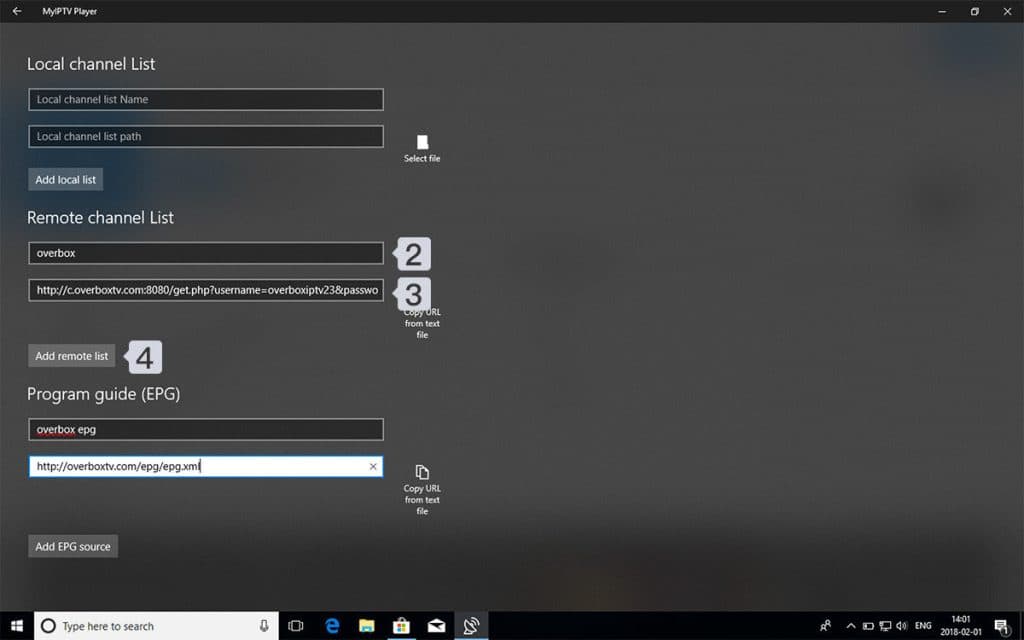
2. Open the IPTV Downloader and Add Your M3U Playlist
Make sure you have a valid IPTV subscription and obtain your M3U playlist URL from your IPTV provider. This URL contains the channel list you want to download.
Navigate to the Settings tab, then select Add New Playlist and EPG Source.

Enter a name (e.g., “overbox”) in the Remote Channel List Name field.
Paste the M3U link provided by your IPTV provider into the Enter Remote Source URL field.
Click the Add Remote List button to save.

Return to the Settings tab and choose overbox from the Select Channel Playlist dropdown.

5. Access Your Content
All set! Go back to the Channels tab and choose the country to watch TV channels on IPTV My IPTV Player.

Frequently Asked Questions
How to Use IPTV in Windows?
To set up IPTV streaming on Windows, download a media player like VLC or Kodi. Enter your M3U playlist URL from a provider. Benefits include diverse content and features. Troubleshoot with stable networks. Explore alternatives and device compatibility.
Can I Download IPTV on PC?
Yes, you can download IPTV on a PC. Ensure IPTV compatibility with your device, understand IPTV legalities, and explore IPTV features for quality streaming. Proper IPTV setups and troubleshooting can enhance your experience with IPTV services and alternatives.
What Is the StreamSmarters Pro App for Windows PC?
When evaluating the StreamSmarters Pro app for Windows PC, focus on user interface design, streaming quality, and content library variety. Compare subscription options, device compatibility, installation process, and customer support. User reviews offer insightful feedback on these features.
Can You Download IPTV Smarters on PC?
Yes, you can download IPTV Smarters on your PC via the Microsoft Store. Consider IPTV compatibility issues, legal concerns, and subscription plans. Evaluate user reviews, streaming quality, channel selection, and service providers for optimal device options.